Outlook for Mac: Add and manage your delegates

You can give a delegate access to your Microsoft Exchange calendar, address book, and inbox, and you can set permissions that define the activities that delegates can carry out for you.

Do any of the following:

Add a delegate

Important: To use delegation, you and your delegate must have Microsoft Exchange account.

  1. On the Tools menu, click Accounts.
  2. Click the account that you want to add a delegate to, click Advanced, and then click the Delegates tab.
  3. Under Delegates who can act on my behalf, click Add  Add.
  4. Type the name of the person that you want to add as a delegate, and then click Find.
  5. Click the delegate’s name, and then click OK.
  6. For each item type, use the pop-up menu to select the permission level that you want to set for the delegate.

    For more information about the permission levels for delegates, see About sharing and delegation.

    Note: Before a delegate can access your items, he or she must add you to the People I am a delegate for list in his or her Microsoft Exchange account. For information about how to become a delegate for someone else, see Become a delegate or stop being a delegate.

Manage delegate permissions for multiple item types

  1. On the Tools menu, click Accounts.
  2. Click the account that you want to change permissions for, click Advanced, and then click the Delegates tab.
  3. Under Delegates who can act on my behalf, click the delegate.
  4. Click the Action  Action pop-up menu button, click Set Permissions, and then make the changes that you want.
    Note: If you set the permission level to None, the delegate remains on the list, which allows you to quickly reinstate permissions later. For information about the permission levels, see About sharing and delegation.

Manage delegate permissions for a single folder

  1. In the navigation pane, click the folder that you want to change.
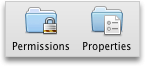
  2. On the Organize tab, click Permissions.

    Organize tab, Permissions, Properties

  3. Click the name of the person that you want to change the permissions for.
  4. On the Permission Level pop-up menu, click the access level that you want.

    To customize the permission levels, select the check boxes for the items that you want, and then under Edit Items and Delete Items, click the permission level that you want.

    Note: If you set the permission level to None, the delegate remains on the list, which allows you to quickly reinstate permissions later. For information about the permission levels, see About sharing and delegation.

Remove a delegate

  1. On the Tools menu, click Accounts.
  2. Click the account that you want to change permissions for, click Advanced, and then click the Delegates tab.
  3. Under Delegates who can act on my behalf, click the delegate.
  4. Click Delete  Delete.

Monitor Registry Key via Powershell for Remote Computers (Monitor SSLv3)

Scenario:  You have a registry key you want to monitor and to alert you if the value changes.  We noticed after the install of Exchange 2013 CU11, it enabled SSLv3 which was manually disabled before.

Script:

#Start
#Define Server Collection
$Servers = Get-ExchangeServer | Where AdminDisplayVersion -like "Version 15*" 

#Loop for SSLv3
$sslv3_svr = @()   #Create Array Variable
$Servers | %{
              $Reg = [Microsoft.Win32.RegistryKey]::OpenRemoteBaseKey('LocalMachine', $_.name)
              $RegKey= $Reg.OpenSubKey("SYSTEM\CurrentControlSet\Control\SecurityProviders\SCHANNEL\Protocols\SSL 3.0\Server")
              $SSLv3 = $RegKey.GetValue("Enabled")
              If($SSLV3 -ne 0){
                     $sslv3_svr += $_.name
              }
            }
#Email it
$body =""
$smtp = "smtp.domain.com"
[string[]]$to = "steve@domain.com","Batman@domain.com"
$from = "SSLv3Monitor@Domain.com"
$subject = "SSLv3 monitor" 
$body += "<b><Font color=#0404B4>SSLv3 is enabled on the following server and needs to be turned off: </b></font><br><br>"
$body += "<Font color=red>$sslv3_svr</font><br><br><br>" 
send-MailMessage -SmtpServer $smtp -To $to -From $from -Subject $subject -Body $body -BodyAsHtml -Priority high

Mail automatically deletes itself as soon as it enters into the Inbox.

Scenario:  A mailbox was recently created and every time mail is sent to this mailbox, it immediately deletes from the Inbox.

You have already verified that there are no mailbox rules, mobile devices, and applications that are causing this behavior.

Solution:  Check the RecipientType of the mailbox that was created by running the following command:

get-recipient iBroke

We had a mailbox that was incorrectly configured as a Room Mailbox and this mailbox needed to be a normal user mailbox. The automatic calendar processing was immediately deleting this message.  We resolved this issue by running:

Set-Mailbox iBroke -Type Regular


Determine which groups are distribution of all the groups a AD user is a member of

Scenario:  A user is a member of multiple security and distribution groups and you wish to determine which of these groups are distribution.

Script:

$1 = (Get-ADUser STEVE -Properties Memberof).memberof
$2 = $1 | %{Get-DistributionGroup $_}


Schedule a Task via Powershell on remote systems

Scenario:  You want to schedule a task remotely via Powershell on remote systems:

Script:

$Servers = "Win2012Svr1", "Win2012Svr2","Win2012Svr3"

$Servers |%{
Invoke-Command {
$action = New-ScheduledTaskAction -Execute 'C:TaskClientStatsClientStats.bat'

$trigger =  New-ScheduledTaskTrigger -Daily -At 1am

Register-ScheduledTask -Action $action -Trigger $trigger -TaskName "ClientStats" -Description "Daily Stat Dump" -user "domainadmin" -password "adminpassword1" -runlevel Highest
} -ComputerName $_

}


Script to import PST’s into a mailbox by first automatically finding the PST file location

Scenario:  You have a list of PST files that you want to import into a mailbox. You want to place the imports into a folder in the mailbox called ‘Imported’ so it doesn’t conflict with the users current mailbox folder structure.

Here is what you have:

  1. A list of users in .csv format with the csv header of NAME
  2. The PST files located in a directory (or multiple sub directories) with the users name in the PST files.
  3. Exchange Powershell!

Script: The script below will take the list of users in the csv format, loop through each user to find their PST’s. For each PST it will create a New Mailbox Import Request. Note – Make sure your properly plan space as you could potentially blow up your database/log size.

#Import the users from the CSV File
$users = Import-csv C:tempusers.csv

#Loop through each user
$users | %{
$u = $_ | Select -ExpandProperty Name

#Find the PST files for the user in this loop    
$files = get-childitem \FileServer1SharePSTs -file $u* -Recurse

#For each PST file, Create a Mailbox Import Request
    $files.fullname | %{
    New-mailboximportrequest $u -filepath $_ -acceptlargedataloss -baditemlimit 100000 -batchname BigImport -targetrootfolder Unarchived
                       }
}


Undeliverable Message reads: Remote Server returned ‘550 5.3.4 SMTPSEND.OverAdvertisedSize; message size exceeds fixed maximum size’

Scenario:  You try to send a message with an attachment to a recipient but you receive a bounce/undeliverable message that shows this error.

Remote Server returned ‘550 5.3.4 SMTPSEND.OverAdvertisedSize; message size exceeds fixed maximum size’

When sending the message, although the message size is close to the max message size set by Exchange, it still falls under the max message size.  For Example:  The maximum message size that your email servers will allow is 35MB, and the message you want to send has a size of 30MB.

Cause for the bounce:  There is a message size conversion when passing off between different message relays. Sometimes this conversion can be up to a 30% increase of the original message size.  For example,  when the message is received in Exchange it shows 30MB.  When the message is passing through the send connector, a size conversion takes place on the message and when Exchange attempts to send it through the send connector to the next message relay, it reads 38MB.  This 38MB exceeds the 35MB limit set on the next message relay and it causes a bounce/undeliverable message.

You can see the size conversion in the TotalBytes field by running a command similar to the following:

get-tranpsortserver | Get-messagetrackinglog -MessageSubject “Big Attachment” -start 1/28/2015  | Sort TimeStamp | Select ServerHostname, Source , EventID, TotalBytes

*In my experience, the type of message attachment influences the size conversion for the message.

WorkaroundResolution:

The easy solution is to just zip the attachment and make it smaller and then attempt to pass it through.  Else you need to increase your maximum message size limits on your message relays to account for the increase caused by the conversion.  For Example, if you truly want to allow a 35MB attachment and account for a 30% message size increase, your maximum message size needs to be 45.5MB.

Open another Mailbox via Outlook Web App (OWA)

Scenario:  You have permission to another users mailbox and you want to open that mailbox via Outlook Web App (OWA)

Steps:

  1. Sign in to your account in Outlook Web App.
  2. On the Outlook Web App nav bar, click on your name. A list appears.
  3. Click Open another mailbox.
  4. Type the alias or email address of the other mailbox that you want to open. Another Outlook Web App session opens in a separate window, allowing access to the other mailbox.

Mailbox Auditing and Audit Log Retrieval

Scenario:  You want to enable mailbox auditing on a mailbox and you want to log all actions performed by Admins, Delegates, and Owners.  You also want to retrieve the audit entries into a easy to read format.

Enable Auditing on a Mailbox:  By default, mailbox auditing is disabled but the audit options are already pre-set for Admin and Delegates. You will need to enable mailbox  auditing and set the actions for the owner of the mailbox as well by running this command:

set-mailbox testuser1 -AuditEnabled $true -AuditOwner Update,Move,MoveToDeletedItems,SoftDelete,HardDelete,Create

To view the audit status for a mailbox:

get-mailbox testuser1 | FL *Audit*


View Audit Log entries

To view the log entries for an audit, you can run the following command-lets.

#Edit the following Variables
$Mailbox = "testuser1"      #Mailbox that has Auditing Enabled
$hours = "48"      #Hours to search back from
$myDir = "C:temp"
$mailto = "steve@domain.com"
$MailFrom = "steve@domain.com"
$ReportemailSubject = "Audit Log Results for $Mailbox"
$MailServer = "smtp.domain.com"

#Static Variables
$reportemailsubject = "Mailbox Audit Logs for $mailbox in last $hours hours."
$rawfile = "$myDirAuditLogEntries.csv"
$htmlfile = "$myDirAuditLogEntries.html"
$smtpsettings = @{
 To =  $MailTo
 From = $MailFrom
    Subject = $reportemailsubject
 SmtpServer = $MailServer
 }

Write-Host "Searching $mailbox for last $hours hours."
$auditlogentries = @()
$identity = (Get-Mailbox $mailbox).Identity
$auditlogentries = Search-MailboxAuditLog -Identity $mailbox -LogonTypes 'Delegate','Owner','Admin' -StartDate (Get-Date).AddHours(-$hours) -ShowDetails
if ($($auditlogentries.Count) -gt 0)
{
    Write-Host "Writing raw data to $rawfile"
    $auditlogentries | Export-CSV $rawfile -NoTypeInformation -Encoding UTF8
    foreach ($entry in $auditlogentries)
    {
        $reportObj = New-Object PSObject
        $reportObj | Add-Member NoteProperty -Name "Mailbox" -Value $entry.MailboxResolvedOwnerName
        $reportObj | Add-Member NoteProperty -Name "Mailbox UPN" -Value $entry.MailboxOwnerUPN
        $reportObj | Add-Member NoteProperty -Name "Timestamp" -Value $entry.LastAccessed
        $reportObj | Add-Member NoteProperty -Name "Audit Logon Type" -Value $entry.LogonType
        $reportObj | Add-Member NoteProperty -Name "Accessed By" -Value $entry.LogonUserDisplayName
        $reportObj | Add-Member NoteProperty -Name "Operation" -Value $entry.Operation
        $reportObj | Add-Member NoteProperty -Name "Result" -Value $entry.OperationResult
        $reportObj | Add-Member NoteProperty -Name "Folder" -Value $entry.FolderPathName
        if ($entry.ItemSubject)
        {
            $reportObj | Add-Member NoteProperty -Name "Subject Lines" -Value $entry.ItemSubject
        }
        else
        {
            $reportObj | Add-Member NoteProperty -Name "Subject Lines" -Value $entry.SourceItemSubjectsList
        }
        $report += $reportObj
    }
    $htmlbody = $report | ConvertTo-Html -Fragment
$htmlhead="<html>
    <style>
    BODY{font-family: Arial; font-size: 8pt;}
    H1{font-size: 22px; font-family: 'Segoe UI Light','Segoe UI','Lucida Grande',Verdana,Arial,Helvetica,sans-serif;}
    H2{font-size: 18px; font-family: 'Segoe UI Light','Segoe UI','Lucida Grande',Verdana,Arial,Helvetica,sans-serif;}
    H3{font-size: 16px; font-family: 'Segoe UI Light','Segoe UI','Lucida Grande',Verdana,Arial,Helvetica,sans-serif;}
    TABLE{border: 1px solid black; border-collapse: collapse; font-size: 8pt;}
    TH{border: 1px solid #969595; background: #dddddd; padding: 5px; color: #000000;}
    TD{border: 1px solid #969595; padding: 5px; }
    td.pass{background: #B7EB83;}
    td.warn{background: #FFF275;}
    td.fail{background: #FF2626; color: #ffffff;}
    td.info{background: #85D4FF;}
    </style>
    <body>
                <p>Report of mailbox audit log entries for $mailbox in the last $hours hours.</p>"
 $htmltail = "</body></html>" 
 $htmlreport = $htmlhead + $htmlbody + $htmltail
    Write-Host "Writing report data to $htmlfile"
    $htmlreport | Out-File $htmlfile -Encoding UTF8
    Write-Host "Sending email"
 Send-MailMessage @smtpsettings -Body $htmlreport -BodyAsHtml -Encoding ([System.Text.Encoding]::UTF8) -Attachments $rawfile
}

Write-Host "Finished."