Add a new email address to mailboxes in bulk

This one liner reads a list of user names from a text file, fetches the current set of proxy email addresses, and adds a new “test.com” SMTP email address to each mailbox.

Get-Content Users.txt | Get-Mailbox |% {$_.EmailAddresses.add(“smtp:$($_.SamAccountname)@test.com”); Set-Mailbox -Identity:$_.Identity -EmailAddresses:$_.EmailAddresses}

Block Activation of Database Copies on an Exchange Server

Scenario:  We need to block database copies on a server from Activation as these servers are being worked on.  Activation is the process of changing a mailbox database copy from a passive copy to an active copy. Activation occurs automatically by the system as part of a database or server failover operation, and it can be performed manually by an administrator as part of a database or server switchover operation. Blocking a database for activation prevents it from becoming the active copy during a database or server failover.

Run the following command to block activation:

For a single server:  
Set-MailboxServer -identity MBX1 -DatabaseCopyAutoActivationPolicy Blocked

For multiple Servers (One liner)
Get-MailboxServer MBX* | Set-MailboxServer -DatabaseCopyAutoActivationPolicy Blocked

Run the following command to unblock activation:

For a single server:  
Set-MailboxServer -identity MBX1 -DatabaseCopyAutoActivationPolicy Unrestricted

For multiple Servers (One liner)
Get-MailboxServer MBX* | Set-MailboxServer -DatabaseCopyAutoActivationPolicy Unrestricted


Reference

Cant delete message in OWA.
Error: Access is denied.
Solution: Insure EWS is enabled on mailbox

In Exchange Powershell run
         get-casmailbox mailboxname |select ewsenabled
if       EwsEnabled                 : False

then enable by running the following command.
         set-casmailbox mailboxname -ewsenabled $true

Manage another person’s mail and calendar items – Outlook 2013

Applies to Outlook 2013

There are two ways to work with another person’s Outlook folders — folder sharing and Delegate Access.

NOTE A Microsoft Exchange Server account is required.

Folder sharing enables another person to access one of your folders, perhaps while you are on vacation. However, it does not include permissions for one to act on behalf of the other. For example, a person who can access your folders can’t reply to email messages or respond to meeting requests for you.

Delegate Access is an Outlook feature that enables one person to act on behalf of another Outlook user. The most common scenario in which this feature is used is a manager and his or her assistant. The assistant might be responsible for maintaining the manager’s schedule, such as creating and responding to meeting requests. Some assistants might also monitor a manager’s Inbox and send email on behalf of the manager.

A less common scenario involving Delegate Access is when a user is assigned permission to send email on behalf of a group in your organization’s Address Book. In this scenario, if you have been assigned Send As permissions for a group in your organization’s Address Book, you can send email and it will appear to be sent from that group.

This article assumes that the manager has already granted Delegate Access to the delegate.

In this article

· Add another person’s mailbox to your profile
· Open another person’s folders
· Send or respond to meeting requests for another person
· Create or reply to an email message on behalf of another person
· Send an email message on behalf of a group
· Save sent items in another person’s Sent Items folder

Add another person’s mailbox to your profile
If you frequently work with someone else’s Exchange folders, you probably will want to add the other person’s Exchange mailbox to your Outlook profile. Doing so will automatically open the other person’s mailbox every time that you open Outlook. The other mailbox appears in the Folder Pane underneath your Exchange mailbox folders.

NOTE The person who is sharing a mailbox must grant you Folder visible permission on the root folder of the Exchange mailbox.

Instructions for granting Folder visible permission

As the manager, do the following in Outlook:

1. Right-click the root folder of the Exchange mailbox, and then click Folder Permissions.
2. Click the name of the delegate.
3. Under Permissions, under Other, select the Folder visible check box.
4. Click OK.

As the delegate, do the following in Outlook:

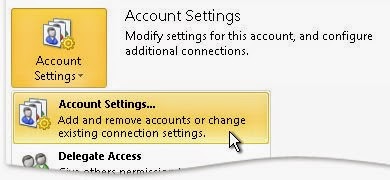
1. Click File > Account Settings > Account Settings.

 2. On the Email tab, in the list, click the Exchange account type, then click Change and then click More Settings.

3. On the Advanced tab, under open these additional mailboxes, click Add, and then enter the mailbox name of the person whose mailbox that you want to add to your user profile. If you do not know the mailbox name, ask the person who granted you Delegate Access permissions.

Open another person’s folders1. Click File > Open & Export > Other User’s Folder. TIP To avoid this step in the future, see the instructions on how to add another person’s mailbox to the Folder Pane in the Add another person’s mailbox to your profile section of this article.
2. In the Name box, enter the name of the person who granted you Sharing or Delegate Access permissions, or click Name to select from a list.
3. In the Folder type list, click the folder that you want to open.

Send or respond to meeting requests for another person
To give the delegate sufficient permissions to accept meeting requests for the manager, the manager must do the following:
1. Click File > Account Settings > Delegate Access.
2. Click Add, then type or select, the delegate’s name, and then click Add.
3. Do one of the following:
· In the Delegate Permissions dialog box, give the delegate Editor (can read, create, and change items) permissions in the manager’s Calendar folder.
· Click OK to close the Delegate Permissions dialog box, then select the check box at either My delegates only, but send a copy of meeting requests and responses to me or My delegates only.

To respond to meeting requests
1. Open the other person’s Inbox if his or her meeting requests are not sent to you directly.
2. Open the meeting request.
3. Click Accept, Tentative, or Decline.

To send a meeting request
1. Open the other person’s calendar.
2. On the Home tab, in the new group, click New Meeting.
3. Enter the attendees, subject, location, and start and end times as you ordinarily do.

Create or reply to an email message on behalf of another person
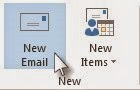
1. In Mail, click Home > New Email. Keyboard shortcut To create an email message, press Ctrl+Shift+M.

2. On the Options tab, in the Show Fields group, click from.
3. In the from box, type the name of the person on whose behalf you are sending the message. To select the name from a list in the Address Book, click from.
4. Add recipients, a subject, and the contents of the message as you typically do.

To reply to an email message
1. In the other person’s mailbox, select the message that you want to reply to on behalf of your manager.

2. Click Home (If you have opened the message, click Message), and then click Reply, Reply All or Forward. Keyboard shortcut To reply to an email message, press Ctrl+R.
3. On the Options tab, in the Show Fields group, click from.
4. In the From box, type your manager’s name. To select the name from a list in the Address Book, click From. If you don’t see the From button and box, click Options > From.
5. Add recipients, a subject, and the contents of the message as you typically do.

Send an email message on behalf of a group

If you have been assigned Send As permissions for a group in your organization’s Address Book, you can send email and it will appear to be sent from that group.

1. In Mail, click Home > New Email. Keyboard shortcut To create an email message, press Ctrl+Shift+M.

2. On the Options tab, in the Show Fields group, click from.
3. In the from box, type the name of the group on whose behalf you are sending the message. To select the group from a list in the Address Book, click from.
4. Add recipients, a subject, and the contents of the message as you typically do.


Save sent items in another person’s Sent Items folder
When email messages and meeting requests are sent by a delegate on behalf of a manager, a copy of each item is saved in the delegate’s Sent Items folder.

As an alternative, the manager can grant permissions to his or her Sent Items folder to the delegate. The delegate can then move or copy the items from his or her own Sent Items folder to the manager’s Sent Items folder.

The manager should do the following:

1. In the Folder Pane, right-click the Sent Items folder.
2. Click Properties.
3. On the Permissions tab, click the name of the delegate.
4. Under Permissions, in the Permission level list, click Editor (can read, create, and change items).
5. Click OK.

If you have added the manager’s mailbox to your profile, the manager’s Sent Items folder appears in the delegate’s Folder Pane under Mailbox – manager.

Manage another person’s mail and calendar items – Outlook 2010

Applies to Outlook 2010

There are two ways to work with another person’s Microsoft Outlook folders — folder sharing and Delegate Access.

NOTE A Microsoft Exchange Server account is required.

Folder sharing enables another person to access one of your folders, perhaps while you are on vacation. However, it does not include permissions for one to act on behalf of the other. For example, a person who can access your folders cannot reply to email messages or respond to meeting requests for you.

Delegate Access is an Outlook feature that allows one person to act on behalf of another Outlook user. The most common scenario in which this feature is used is a manager and his or her assistant. The assistant might be responsible for maintaining the manager’s schedule, including creating and responding to meeting requests. Some assistants might also monitor a manager’s Inbox.

This article assumes that the manager has already given Delegate Access to the delegate.

In this article

· Add another person’s mailbox to your profile
· Open another person’s folders
· Send or respond to meeting requests for another person
· Create or reply to an email message on behalf of another person
· Save sent items in another person’s Sent Items folder

Add another person’s mailbox or Service Mailbox to your profile
If you frequently work with someone else’s Exchange folders, you probably will want to add the other person’s Exchange mailbox to your Outlook profile. Doing so will automatically open the other person’s mailbox every time that you open Outlook. The other mailbox appears in the Navigation Pane underneath your Exchange mailbox folders.

NOTE The person who is sharing a mailbox must grant you Folder Visible permission on the root folder of the Exchange mailbox. The shared mailbox usually appears as Mailbox – user name.

Instructions for granting Folder Visible permission

As the manager, do the following in Outlook:

1. Right-click the root folder of the Exchange mailbox, and then click Change Sharing Permissions. The shared mailbox usually appears as Mailbox – user name.
2. Click the name of the delegate.
3. Under Permissions, under other, select the Folder Visible check box.
4. Click OK.

As the delegate, do the following in Outlook:

1. Click the File tab.
2. Click Account Settings, and then click Account Settings.

3. On the E-mail tab, in the list, click the Exchange account type, then click Change and then click More Settings.
4. On the Advanced tab, under Open these additional mailboxes, click Add, and then enter the mailbox name of the person whose mailbox you want to add to your user profile. If you do not know the mailbox name, ask the person who granted you Delegate Access permissions.

Open another person’s folders

1. Click the File tab.
2. Click Open.
3. Click Other User’s Folder. TIP To avoid this step in the future, see the instructions on how to add another person’s mailbox to the Navigation Pane in the Add another person’s mailbox to your profile section of this article.
4. In the Name box, enter the name of the person who granted you Sharing or Delegate Access permissions, or click Name to select from a list.
5. In the Folder type list, click the folder that you want to open.

Send or respond to meeting requests for another person
To give the delegate sufficient permissions to accept meeting requests for the manager, the manager must do the following:

1. Click the File tab.
2. Click Account Settings, and then click Delegate Access.
3. Enter the delegate’s information and click Add.
4. Do one of the following:
· In the Delegate Permissions dialog box, give the delegate Editor (can read, create, and change items) permissions in the manager’s Calendar or Tasks folder and at least Reviewer (can read items) permissions in the manager’s Inbox.

· Click OK to close the Delegate Permissions dialog box, then select the check box at either My delegates only, but send a copy of meeting requests and responses to me or My delegates only.

5. Click any other tab to return to your file.

To respond to meeting requests
1. Open the other person’s Inbox if his or her meeting requests are not sent to you directly.
2. Open the meeting request.
3. Click Accept, Tentative, or Decline.

To send a meeting request

1. Open the other person’s calendar.
2. On the Home tab, in the New group, click New Meeting.
3. Enter the attendees, subject, location, and start and end times as you ordinarily do.

Create or reply to an email message on behalf of another person

To create an email message

1. In Mail, on the Home tab, in the New group, click New E-mail. Keyboard shortcut To create an email message, press Ctrl+Shift+M.
2. In the From box, type the name of the person on whose behalf you are sending the message. To select the name from a list in the Address Book, click From. If you do not see the From button and box, on the Options tab of the message, in the Show Fields group, click From.
3. Add recipients, a subject, and the contents of the message as you typically do.

To reply to an email message

1. In the other person’s mailbox, select the message that you want to reply to on behalf of your manager.
2. On the Home tab (If you have opened the message, on the Message tab), in the Respond group, click Reply, Reply All or Forward. Keyboard shortcut To reply to an email message, press Ctrl+R.
3. In the From box, type your manager’s name. To select the name from a list in the Address Book, click From. If you do not see the From button and box, on the Options tab, in the Show Fields group, click From.
4. Add recipients, a subject, and the contents of the message as you typically do.

Save sent items in another person’s Sent Items folder

When email messages and meeting requests are sent by a delegate on behalf of a manager, a copy of each item is saved in the delegate’s Sent Items folder. This behavior is by design.

As an alternative, the manager can grant permissions to his or her Sent Items folder to the delegate. The delegate can then move or copy the items from his or her own Sent Items folder to the manager’s Sent Items folder.

NOTE To see another person’s folders in the Navigation Pane, see Add another person’s mailbox to your profile.

The manager should do the following:

1. In the Navigation Pane, right-click the Sent Items folder.
2. Click Change Sharing Permissions.
3. On the Permissions tab, click the name of the delegate.
4. Under Permissions, in the Permission level list, click Editor (can read, create, and change items).
5. Click OK.

The manager’s Sent Items folder appears in the delegate’s Navigation Pane under Mailbox – manager.

Export or manually archive Outlook 2011 for MAC items

An easy way to reduce the size of your Inbox is to export — manually archive to an ‘Outlook for Mac Data File’ (.olm) on your Mac — your e-mail messages, contacts, and other items. You can still access this data at any time, and you can even transfer individual items, or the entire Data File, to Outlook for Mac on another computer.

NOTE   In Outlook for Windows, older Outlook items are archived automatically on a regular interval, also known as Auto Archive. This is not available in Outlook for Mac, but you can archive data automatically by setting up Time Machine.

Do any of the following:

Export to an Outlook for Mac Data File
When you export to an Outlook for Mac Data File, you can choose to filter information by category or by item type. For example, if you want to transfer networking information from your work computer to your home computer, you could export only items that you’ve assigned to the Networking category. Similarly, you might want to export all your contacts on your home computer and then import them on your work computer. During the export process, you can choose to keep the exported items in Outlook, or to delete them after they are exported.
1. On the File menu, click Export.
2. Click Outlook for Mac Data File.
3. Select an option to filter by category or item type. To export all items in Outlook, click Items of the following types, and then select all the check boxes.
4. Click the right arrow to continue, and then follow the instructions. The Outlook for Mac Data File uses the .olm extension.

NOTES
– If you have a Microsoft Exchange account or directory services account, contacts from the directory are not exported. Similarly, items that are stored in public folders are not exported.
– An Outlook for Mac Data File does not contain account settings or your Outlook preferences.

Export contacts in a tab-delimited text file
To transfer a set of contacts to another computer or application, you can export contacts as a tab-delimited text file, which can be opened by many other mail, spreadsheet, and database applications.
1. On the File menu, click Export.
2. In the Export Assistant, click Contacts to a list, and then follow the instructions. Tab-delimited files are saved with a .txt extension.

 NOTES
– If you have a Microsoft Exchange account or directory services account, contacts from the directory are not exported.
– When you export a contact, all the information in Outlook that is related to that contact — such as mailing addresses, birthday, and notes — is included. However, some mail applications might be unable to display the contents of certain fields such as “Spouse/Partner” and “Interests.”
– Encryption certificates aren’t exported.

Export individual items
You can also export single items as individual files, either to have as a backup or to use in other applications.
1. In the item list, select the item that you want to export. To select multiple items, hold down   as you click the items.
2. Drag the selection to the desktop or a folder in the Finder.

NOTES
– E-mail messages are exported as .eml files.
– Contacts are exported as vCard (.vcf) files.
– Calendar events and tasks are exported as .ics files.
– Notes are exported as .html files.

Outlook 2011 for MAC not receiving mail

Scenario: “I’m not receiving e-mail or other items in my Exchange account” for Outlook for Mac.
Cause1: Outlook is offline.
Solution1:    Verify that Outlook is online. On the Outlook menu, make sure that Work Offline is not checked. 

Cause2: Outlook is not connected to the server that is running Microsoft Exchange Server.
Solution2:    Check your Microsoft Exchange server connection.  On the Tools menu, click Accounts. Look at the Exchange account in the left pane. If there is a problem with the connection, the indicator icon will be orange.
If you successfully connected to the account before, try to connect to it from another Exchange application, such as Outlook Web App.


Cause3: Items from an Exchange account are stored in the Outlook cache. If this cache becomes corrupted, it may cause synchronization problems with the Exchange server.

Solution3:    Empty the cache in Outlook so that Outlook can download all the items from your Microsoft Exchange account again.

CAUTION   The following procedure deletes any information that is not synchronized with the Exchange server, including your contacts’ mail certificate. Before emptying the cache, you may want to back up your Outlook information that is stored only locally on your computer. Make sure that your computer is connected to the Exchange server.

1.     In the navigation pane, press CONTROL and click the Exchange folder for which you want to empty the cache, and then click Folder Properties.

2.     On the General tab, under Empty Cache, click Empty.
After the folder is empty, Outlook automatically downloads the items from the Exchange server.

Manually downloading a copy of the Offline Address Book.

Scenario: You expect to see a user in the Offline Address Book, but you cannot find that user. The Offline Address Book is used when Outlook is in Cached mode.

Solutions:  Outlook is supposed to download the offline address book every 24 hours. Additions/Modifications made to users in the address book may not be seen by someone who is using an older version of the offline address book. We have seen a restart of the computer force Outlook to download it if Outlook has not updated for a while, but you can attempt to manually download a new copy of the Offline Address Book.

Outlook 2010/2013 

1. Click the Send/Receive Tab, click Send/Receive Groups, Select Download Address book.
2. Uncheck the box next to Download changes since last Send/Receive. In the Information to download section, select Full Details and in the Address Book section, choose Global Address List. click OK.
3. The offline address book will start to download. A status window will open to indicate that the download is in progress and will close automatically when the download is complete.

Outlook 2007 

1. Click on Tools, highlight Send/Receive, select Download Address Book.
2. Uncheck the box next to Download changes since last Send/Receive. In the Information to download section, select Full Details and in the Address Book section, choose Global Address List. Click OK.
3. The offline address book will start to download. A status window will open to indicate that the download is in progress and will close automatically when the download is complete.

Outlook 2011 on OSX

1.Fully exit Outlook 2011
2.Remove the ~/Library/Caches/Outlook/Main Identity directory
3.Restart Outlook 2011

If the user is not in the offline address book, verify you can find the user via Outlook Web App. 

Removing Bulk Exchange Mailboxes via Powershell

Scenario:  You have a list of mailboxes that you wish to remove in bulk.

Resolution:  We will use the Remove-Mailbox command-let in order to perform this task.  We will remove it via a loop by reading in a CSV file with the mailboxes.  Note:  The Remove-Mailbox will disable the mailbox and delete the AD account.  If you wish to leave the AD Account but only disable the mailbox, use the Disable-Mailbox instead.

Create a CSV file with the names of the mailboxes
  1. Open Notepad
  2. On the first line, type in name
  3. On the second line and down, paste the mailbox names (one mailbox per line).
  4. Save it as Mailboxes.csv to a location you will remember

Import the CSV into a Exchange Variable
  1. Open Exchange Management Shell
  2. Type in the following: (Make sure to use the .csv file path from above)
       $mailboxes = Import-Csv ‘C:mailboxes.csv’
  3.  Verify that your Exchange Variable has content by typing in:
       $mailboxes

Remove the Mailboxes via a loop in Exchange Management Shell.
  1. Type in the following:
       $mailboxes | %{Remove-mailbox $_.name -confirm:$false }
  2. The Mailboxes and AD objects are now removed.

Alternate Methods:

1. Remove a Single Mailbox:    
     Remove-Mailbox jdoe1 -confirm:$false
2. Remove multiple mailboxes that follow a pattern in the mailbox name quickly:
     Get-mailbox jdoe* | Remove-mailbox -confirm $false


Gathering Mailbox Counts in Exchange

Scenario:  You need to gather Mailbox Counts in your Exchange Environment.  You need to gather these types of counts: Total Mailboxes in your Exchange Organization, Total Mailboxes per Server, and/or Total Mailboxes per Database.

Run the following:
1. Total Mailboxes in the Exchange Organization
(Get-mailbox -resultsize unlimited).count

2. Total Mailboxes per Mailbox Server
Get-Mailbox -resultsize unlimited | Group-Object -Property:ServerName | Select-Object Name,Count

3. Total Mailboxes per Database
Get-Mailbox -resultsize unlimited | Group-Object -Property:Database | Select-Object Name,Count

If you know specific information for the server or database,  you can run the following:

Server:  (Get-MailboxServer MBX01| Get-mailbox -resultsize unlimited).count
Database:  (Get-MailboxDatabase DB01 | Get-mailbox -resultsize unlimited).count