Configuring Message rules for a shared Mailbox

Configuring message rules for a shared mailbox

Scenario: How do I access a shared mailbox and change a rule.  I do have admin rights and full access to this mailbox but when I do a file > open> and try to change the rules, it reverts back to my primary mailbox rules.

Note: Exchange 2010 users cannot modify rules for mailboxes in Exchange 2013, and vice versa

There are several methods to get this to work:

Method 1: Outlook 2010 or Outlook 2013

Configuring Message rules for a shared Mailbox/Service Mailbox

If you are using Outlook 2010 or Outlook 2013 and either have been granted Full Access permissions to the mailbox or have been provided separate credentials for it, then you can also configure this shared mailbox as an additional Exchange account or add it as a secondary mailbox of your own.

How to add an additional mailbox in Outlook 2010:

http://www.groovypost.com/howto/microsoft/add-a-second-additional-mailbox-in-outlook-2010/

How to add an additional mailbox in Outlook 2013

http://www.groovypost.com/howto/add-additional-mailbox-in-outlook-2013/

Once the mailbox has been added, select its Inbox folder and add the rule as you would normally do for your own mailbox.

Method 2: Outlook Web App

When you have been granted Full Access permissions, then you can log on with your own username and password and click on your own name in the top-right corner to get to the option of opening another mailbox.

If you haven’t been granted Full Access permissions but do have separate log on credentials for the additional mailbox, you can use that to log on.

Once logged in, you can create a message rule in the following way:

    For OWA 2013:
    Gears icon (right side of your name)-> Options-> Organize email

    For OWA 2010:
    Options (below your name)-> Create an Inbox Rule…
 

Emails in users “Inbox” are automatically moved to a folder (not created by user), labeled “Junk”

Scenario:

A new email arrives, it sits in the “Inbox” anywhere from a few seconds to a few minutes before it moves to a folder labeled “Junk”. This is not the default “Junk E-Mail” folder in Outlook/OWA.

Issue:

Client has a Samsung Galaxy device configured to view users mailbox.

Solution: 

  1. Go into the E-Mail application on the Samsung Galaxy
  2. Press the Menu Key, select Settings, then General Settings
  3. Select Spam addresses and remove any addresses that should not be in there, such as your corporate domain.

Problem:

Outlook just hangs when trying to open outlook on one windows computer, but can open on another windows system.

User is on exchange server, running outlook 2013/2010.
Creating a new outlook profile does not fix the issue.

Resolution:

Rebuild windows profile and create new outlook profile.

This is just a quick solution, rebuilding the windows profile many times is much quicker than going through many troubleshooting steps.


Manage another person’s mail and calendar items – Outlook 2010

Applies to Outlook 2010

There are two ways to work with another person’s Microsoft Outlook folders — folder sharing and Delegate Access.

NOTE A Microsoft Exchange Server account is required.

Folder sharing enables another person to access one of your folders, perhaps while you are on vacation. However, it does not include permissions for one to act on behalf of the other. For example, a person who can access your folders cannot reply to email messages or respond to meeting requests for you.

Delegate Access is an Outlook feature that allows one person to act on behalf of another Outlook user. The most common scenario in which this feature is used is a manager and his or her assistant. The assistant might be responsible for maintaining the manager’s schedule, including creating and responding to meeting requests. Some assistants might also monitor a manager’s Inbox.

This article assumes that the manager has already given Delegate Access to the delegate.

In this article

· Add another person’s mailbox to your profile
· Open another person’s folders
· Send or respond to meeting requests for another person
· Create or reply to an email message on behalf of another person
· Save sent items in another person’s Sent Items folder

Add another person’s mailbox or Service Mailbox to your profile
If you frequently work with someone else’s Exchange folders, you probably will want to add the other person’s Exchange mailbox to your Outlook profile. Doing so will automatically open the other person’s mailbox every time that you open Outlook. The other mailbox appears in the Navigation Pane underneath your Exchange mailbox folders.

NOTE The person who is sharing a mailbox must grant you Folder Visible permission on the root folder of the Exchange mailbox. The shared mailbox usually appears as Mailbox – user name.

Instructions for granting Folder Visible permission

As the manager, do the following in Outlook:

1. Right-click the root folder of the Exchange mailbox, and then click Change Sharing Permissions. The shared mailbox usually appears as Mailbox – user name.
2. Click the name of the delegate.
3. Under Permissions, under other, select the Folder Visible check box.
4. Click OK.

As the delegate, do the following in Outlook:

1. Click the File tab.
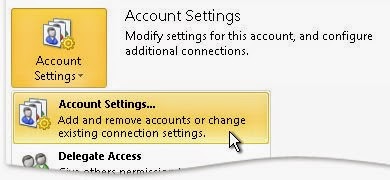
2. Click Account Settings, and then click Account Settings.

3. On the E-mail tab, in the list, click the Exchange account type, then click Change and then click More Settings.
4. On the Advanced tab, under Open these additional mailboxes, click Add, and then enter the mailbox name of the person whose mailbox you want to add to your user profile. If you do not know the mailbox name, ask the person who granted you Delegate Access permissions.

Open another person’s folders

1. Click the File tab.
2. Click Open.
3. Click Other User’s Folder. TIP To avoid this step in the future, see the instructions on how to add another person’s mailbox to the Navigation Pane in the Add another person’s mailbox to your profile section of this article.
4. In the Name box, enter the name of the person who granted you Sharing or Delegate Access permissions, or click Name to select from a list.
5. In the Folder type list, click the folder that you want to open.

Send or respond to meeting requests for another person
To give the delegate sufficient permissions to accept meeting requests for the manager, the manager must do the following:

1. Click the File tab.
2. Click Account Settings, and then click Delegate Access.
3. Enter the delegate’s information and click Add.
4. Do one of the following:
· In the Delegate Permissions dialog box, give the delegate Editor (can read, create, and change items) permissions in the manager’s Calendar or Tasks folder and at least Reviewer (can read items) permissions in the manager’s Inbox.

· Click OK to close the Delegate Permissions dialog box, then select the check box at either My delegates only, but send a copy of meeting requests and responses to me or My delegates only.

5. Click any other tab to return to your file.

To respond to meeting requests
1. Open the other person’s Inbox if his or her meeting requests are not sent to you directly.
2. Open the meeting request.
3. Click Accept, Tentative, or Decline.

To send a meeting request

1. Open the other person’s calendar.
2. On the Home tab, in the New group, click New Meeting.
3. Enter the attendees, subject, location, and start and end times as you ordinarily do.

Create or reply to an email message on behalf of another person

To create an email message

1. In Mail, on the Home tab, in the New group, click New E-mail. Keyboard shortcut To create an email message, press Ctrl+Shift+M.
2. In the From box, type the name of the person on whose behalf you are sending the message. To select the name from a list in the Address Book, click From. If you do not see the From button and box, on the Options tab of the message, in the Show Fields group, click From.
3. Add recipients, a subject, and the contents of the message as you typically do.

To reply to an email message

1. In the other person’s mailbox, select the message that you want to reply to on behalf of your manager.
2. On the Home tab (If you have opened the message, on the Message tab), in the Respond group, click Reply, Reply All or Forward. Keyboard shortcut To reply to an email message, press Ctrl+R.
3. In the From box, type your manager’s name. To select the name from a list in the Address Book, click From. If you do not see the From button and box, on the Options tab, in the Show Fields group, click From.
4. Add recipients, a subject, and the contents of the message as you typically do.

Save sent items in another person’s Sent Items folder

When email messages and meeting requests are sent by a delegate on behalf of a manager, a copy of each item is saved in the delegate’s Sent Items folder. This behavior is by design.

As an alternative, the manager can grant permissions to his or her Sent Items folder to the delegate. The delegate can then move or copy the items from his or her own Sent Items folder to the manager’s Sent Items folder.

NOTE To see another person’s folders in the Navigation Pane, see Add another person’s mailbox to your profile.

The manager should do the following:

1. In the Navigation Pane, right-click the Sent Items folder.
2. Click Change Sharing Permissions.
3. On the Permissions tab, click the name of the delegate.
4. Under Permissions, in the Permission level list, click Editor (can read, create, and change items).
5. Click OK.

The manager’s Sent Items folder appears in the delegate’s Navigation Pane under Mailbox – manager.

Manually downloading a copy of the Offline Address Book.

Scenario: You expect to see a user in the Offline Address Book, but you cannot find that user. The Offline Address Book is used when Outlook is in Cached mode.

Solutions:  Outlook is supposed to download the offline address book every 24 hours. Additions/Modifications made to users in the address book may not be seen by someone who is using an older version of the offline address book. We have seen a restart of the computer force Outlook to download it if Outlook has not updated for a while, but you can attempt to manually download a new copy of the Offline Address Book.

Outlook 2010/2013 

1. Click the Send/Receive Tab, click Send/Receive Groups, Select Download Address book.
2. Uncheck the box next to Download changes since last Send/Receive. In the Information to download section, select Full Details and in the Address Book section, choose Global Address List. click OK.
3. The offline address book will start to download. A status window will open to indicate that the download is in progress and will close automatically when the download is complete.

Outlook 2007 

1. Click on Tools, highlight Send/Receive, select Download Address Book.
2. Uncheck the box next to Download changes since last Send/Receive. In the Information to download section, select Full Details and in the Address Book section, choose Global Address List. Click OK.
3. The offline address book will start to download. A status window will open to indicate that the download is in progress and will close automatically when the download is complete.

Outlook 2011 on OSX

1.Fully exit Outlook 2011
2.Remove the ~/Library/Caches/Outlook/Main Identity directory
3.Restart Outlook 2011

If the user is not in the offline address book, verify you can find the user via Outlook Web App. 

This message could not be sent. Try again later or contact your network administrator. Error [0x80004005-000000000-00000000]

Issue: This message could not be sent. Try again later or contact your network administrator. Error [0x80004005-000000000-00000000]
Scenario: Organization has throttling policy with recipient rate limit of 10,000 per day set for the organization. For this org, service mailboxes aren’t throttled. User has 2 mailboxes (primary and service mailbox) opened in Outlook. User has send-as permissions to the service mailbox but as a group member.
User tries to send from outlook as service mailbox to multiple recipients but received error message. see error message below
Undeliverable: your message did not reach some or all of the intended recipients. This message could not be sent. Try sending message again later or contact your network administrator. Error is
[0x80004005-000000000-00000000].
Resolution: Advised user to send message using Outlook web Access. User needs to login to OWA and open the service mailbox. Messages can now be sent without throttling.

Alternatively, for a user that insist on using Outlook, user must be given explicit send-as permission to the service mailbox so as to be able to bypass throttling policy

Outlook: There is a problem with the proxy server’s security certificate. The name on the security certificate is invalid or does not match the name of the site. Outlook is unable to connect to this server.

Issue: Error message from Outlook: There is a problem with the proxy server’s security certificate, %s. The name on the security certificate is invalid or does not match the name of the site. Outlook is unable to connect to this server. (%s)
  
Finding/Resolution: Checked Outlook provider settings and saw that server and certificate was set to 2 dashes(–)
used this command to fix: set-outlookprovider EXPR -Server $Null and Set-Outlookprovider EXPR -CertPrincipalName $Null
The command will set outlook provider EXPR to Null(Blank). By doing so Outlook will rely on autodiscover to get the correct outlook anywhere settings

Clients connecting to recently installed servers, but the clients have delayed/no connection

Issue
**************
Clients were trying to connect to servers that were recently installed, but currently offline for the process of completing setup, causing the clients to have delayed, or no connection at all.
Cause
*************
The servers were not set with the right URL, and once the servers are installed into a site, autodiscover will query AD to get the URL and other information, even if the servers are offline, the information is in AD and can be returned to users.
Once the users received the Internal URL for the offline servers, they would try to connect to that internal URL, and eventually timeout, then they would connect to the externally listed url, https://mail.test.com
Resolution
**************
We did a couple of things to try and prevent users from getting to the down servers
1.       We set the SCP autodiscover record to be mail.test.com on the 4 new servers
a.       Set-clientaccessserver –AutoDiscoverServiceInternalUri https://mail.test.com/autodiscover/autodiscover.xml
2.       We then went into ADSI edit and modified the internal URL for outlook anywhere on the 4 new servers as well
3.       We then restarted the app pool for autodiscover to clear the autodiscover cache
a.       This then allowed users to set the connection point to mail.test.com
4.       For clients, they may need to do a repair profile to remove the server FQDN from the outlook profile and restart outlook
Next Steps
************
When the 4 new servers are brought back up verify that the outlook anywhere settings are correct from powershell.
Get-outlookanywhere <NEW SERVER NAMES> | fl
Check internal URL and make sure it is mail.test.com
May want to change the Internal URL to the mobile. For all the servers, removing the internal FQDN

Also change the AutoDiscoverServiceInternalUri for the client access servers to mail.test.com, so users do not try to use an individual server name when they discover an SCP record.

Set up an Exchange connection to your email in Outlook 2010 or Outlook 2013

Follow these steps.

1. Open Outlook 2010 or Outlook 2013. If the Microsoft Outlook Startup wizard appears, on the first page of the wizard, click Next. Then, on the E-mail Accounts page, click Next to set up an email account.
If the Microsoft Outlook Startup wizard doesn’t appear, on the Outlook toolbar, click the File tab. Then, just above the Account Settings button, click Add Account.

2. On the Auto Account Setup page, Outlook may automatically fill in the Your Name and E-mail Address settings based on how you’re logged on to your computer. If the settings are filled in and they’re correct, click Next to have Outlook finish setting up your account. If the settings on the Auto Account Setup page aren’t filled in or aren’t correct, do the following:

      If the settings on the Auto Account Setup page aren’t filled in, type the correct settings based on the information that was provided to you by the person who manages your email account.
      If the name in the Your Name box isn’t correct, you may need to reset the options on the Auto Account Setup page before you can edit your name. To reset the options, click the option button next to Manually configure server settings or additional server types, and then click the option button next to E-Mail Account.

3. After you click Next on the Auto Account Setup page, Outlook will search online to find your email server settings. You’ll be prompted to enter your user name and password during this search. Make sure that you enter your full email address (for example, tony@contoso.com) as your user name.

If Outlook is able to set up your account, you’ll see the following text: “Congratulations! Your email account is successfully configured and ready to use.” Click Finish.

Reference