Check the Total Physical Memory via Powershell

Scenario:  You add a bunch of memory to multiple servers and you want to check the amount on each server to verify it.

Powershell:

Check one Server in GB:   [math]::Round((Get-WmiObject -Class Win32_ComputerSystem  -computer ServerName).TotalPhysicalMemory/1GB)

Check one server in MB: [math]::Round((Get-WmiObject -Class Win32_ComputerSystem  -computer ServerName).TotalPhysicalMemory/1MB)

Check Multiple Exchange Servers:

$server = Get-exchangeservers

$server | %{ Write-Host $_; [math]::Round((Get-WmiObject -Class Win32_ComputerSystem  -computer $_).TotalPhysicalMemory/1GB)}

Exchange 2013 Backup Event ID’s in Order

Here are the Exchange 2013 Backup Event ID’s in order to assist troubleshooting your backup related problems.

  • Event ID 2021  – MSExchangeRepl –  Successfully collected metadata document in preparation for backup.
  • Event ID 2110  – MSExchangeRepl –  Successfully prepared for a full or a copy backup of database MDB01.
  • Event ID 2023  – MSExchangeRepl –  VSS writer successfully prepared for backup.
  • Event ID 2005  – ESE –  Shadow copy instance started.
  • Event ID 2025  – MSExchangeRepl –  VSS successfully prepared for a snapshot.
  • Event ID 2001  – ESE –  MDB01 shadow copy freeze started.
  • Event ID 2027  – MSExchangeRepl –  VSS writer instance has successfully frozen the databases.
  • Event ID 2003  – ESE –  MDB01 shadow copy freeze ended.
  • Event ID 2029  – MSExchangeRepl –  VSS writer instance has successfully thawed the databases.
  • Event ID 2035  – MSExchangeRepl –  VSS writer has successfully processed the post – snapshot event.
  • Event ID 2021  – MSExchangeRepl –  VSS writer has successfully collected the metadata document in preparation for backup.
  • Event ID 224  – ESE –  MDB01 deleting log files C:ExchVolsMDB01Log FilesE0000000001.log to C:ExchVolsMDB01Log FilesE000000002B.log.
  • Event ID 225  – ESE –  MDB01—no log files can be truncated; will be logged instead of Event ID 224 when circular logging is used.
  • Event ID 2046  – MSExchangeRepl –  VSS writer has successfully completed the backup of database MDB01.
  • Event ID 2006  – ESE –  MDB01 shadow copy completed successfully.
  • Event ID 2033  – MSExchangeRepl –  VSS writer has successfully processed the backup completion event.
  • Event ID 2037  – MSExchangeRepl –  VSS writer backup has been successfully shut down.

How to quickly gather IP Addresses for a list of Servers

Scenario: You want to quickly gather the IP addresses from a list of HostNames.  Gather your hostnames into a variable and run the following script:

#Gather into your Variable ( I am gathering a list of all Exchange 2010 servers) – You could also Import-CSV or other import types.

$Servers = Get-ExchangeServer ExSvr* | Where AdminDisplayversion -like *14* | Sort Name

#Loop It!  You can also write it out to a file as well by inserting Out-File with -append OR other export types.

$servers | %{
$IP = [System.Net.DNS]::GetHostAddresses($_.Name).IPAddressToString
$Name = $_.Name +":"+$IP
Write-Host $name
}

“The User Profile service service failed the logon. User profile cannot be loaded.” when sigining into a server.

Scenario: When trying to log into a 2012 server, you receive the following error:

The User Profile service service failed the logon. User profile cannot be loaded.

This info is displayed in the application log (Event 1509).

Windows cannot copy file \?C:UsersDefaultAppDataLocalMicrosoftExchange Serverv15Configuration14720_100.sqm to location \?C:Users<username>AppDataLocalMicrosoftExchange Serverv15Configuration14720_100.sqm. This error may be caused by network problems or insufficient security rights.

DETAIL – Access is denied.

Resolution:  Go to the permissions of the source file and make sure you select the permissions to be inherited: C:usersdefault…Configuration14720_100.sqm

Rename Volume Labels by Powershell

To bulk rename Volume Labels for disks, use the following Powershell command:

get-ciminstance win32_Volume -filter “Label = ‘Old Label'” | set-ciminstance -Property @{Label =’New Label’}

If these volumes are mount points and you have to change the folder name as well, use the following Powershell command:

Rename-Item C:OldFolderName C:NewFolderName

The amount of used space on a Hard Drive does not match the used space in Disk Management

Scenario:  We were getting alerted that the mount points (1 TB drives) on Exchange were getting low on free disk space.  During investigation, we noticed that there was an inconsistency with the size of the files and folders on the drive versus what Disk Management was showing.

Cause:  Shadow Copies must have been enabled at some point, and there was a shadow copy of another mount point on the mount point I was investigating.  (Open Disk Management –>Right click the drive and go to Properties –> Go to the Shadow Copies Tab and scroll down the list of Hard Drives)

Solution:

From a command prompt, enter the following:

Diskshadow

Delete Shadows All

When you look at the disk space now,  the shadow copy was removed and the space is now showing correctly.

Script to Purge IIS Logs on Servers

Scenario:  Some applications, such as IIS, will create daily logs on your server. These IIS logs can be big in size and will not automatically purge off.  The script below will purge all but 7 days worth of IIS logs for each server listed in the $servers variable.

PowerShell Script (PurgeIISLogs.ps1)

$servers = “MBX01″,”MBX02”

$servers | %{ 

dir $_c$inetpublogslogfiles -recurse |  Where { ((get-date)-$_.LastWriteTime).days -gt 5 } | Remove-Item -Force

}

To schedule this script to run as a daily task, setup a second script (a batch script) that calls the Powershell script and executes it. The batch script is below.

Batch Script (PurgeIISLogs.bat)

%SystemRoot%system32WindowsPowerShellv1.0powershell.exe -NoProfile -ExecutionPolicy Bypass -Command “& ‘c:TASKPurgeIISLogs.ps1′”

Check for hotfix on multiple computers

Create file c:server_list.txt with a list of the servers to check.
In powershell scripts below: Replace $Patch variable KB2982791with the hotfix your looking for.

2 Files will be created on your desktop.
      Hotfix=Present.log
      Missing=Hotfix.log


Run the following from powershell
$computers = cat C:server_list.txt
$Patch = “KB2982791”
foreach ($computer in $computers)  
{  
if (get-hotfix -id $Patch -ComputerName $computer -ErrorAction 0)  
{  
Add-content “Hotfix is Present in $computer” -path “$env:USERPROFILEDesktopHotfix-Present.log” 
}
Else  
{  
Add-content “Hotfix is not Present in $computer” -path “$env:USERPROFILEDesktopMissing-Hotfix.log”   

}

Reading a Memory .dmp File

Scenario:  A server performed a hard shutdown and restarted. You want to figure out the faulting process that cause this crash.

Steps:

1.  Make sure you have downloaded and installed BlueScreenView and WDK 8 (Windows Driver Kit).

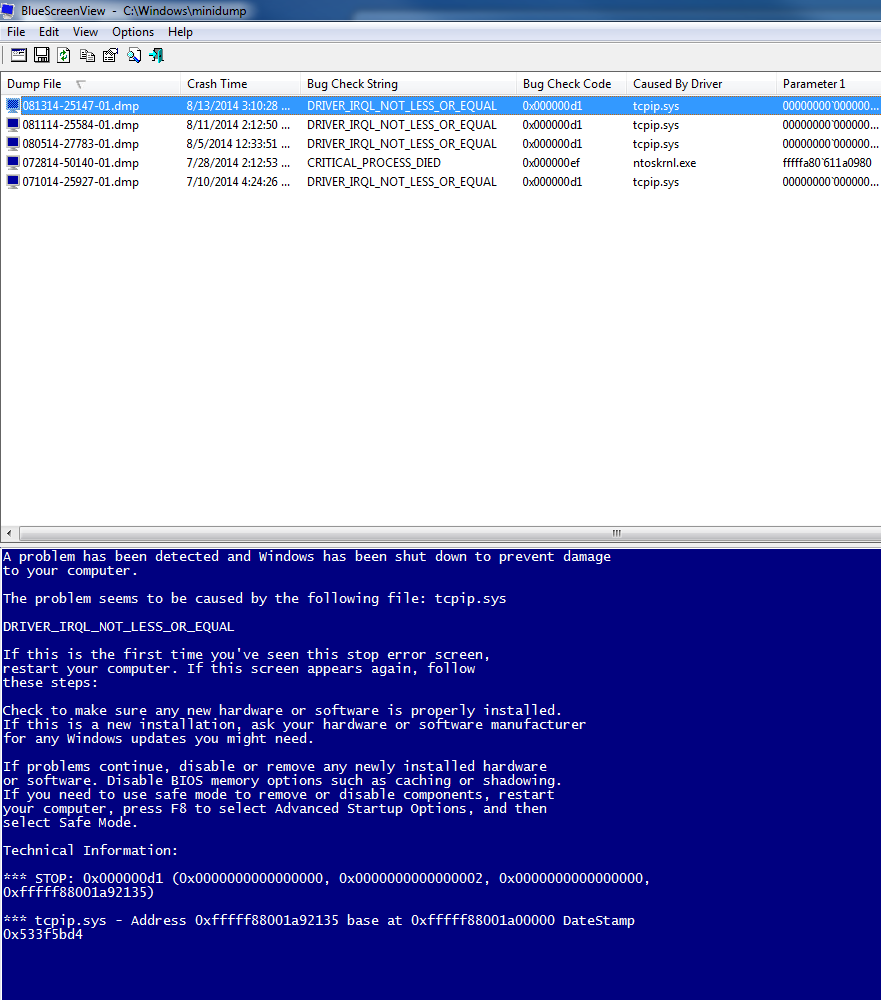
2.  Open BlueScreenView.  If you have copied the dmp files to your computer, make sure you put them in C:windowsminidump folder.

Click on the dmp file and it will tell you what driver caused the blue screen.  You can also change the lower pane mode in the Options menu to see the actual Blue Screen on the server or the drivers in the crash stack. This will give you somewhat of an idea of what caused the crash.


3.  To find more information in the crash dump file, use WDK. Open a Elevated Command Prompt and navigate to the following directory: C:Program Files (x86)Windows Kits8.0Debuggersx64

4.  Copy the Dump file (.dmp) locally. On Server 2012, this is in the %SystemRoot%MiniDump folder.

5. Type the following:

kd –z C:windowsMiniDumpWindowsmemory.dmp

.logopen c:debuglog.txt

.sympath srv*c:symbols*http://msdl.microsoft.com/download/symbols

.reload;!analyze -v;r;kv;lmnt;.logclose;q

6. Review the results by opening c:debuglog.txt.  Search for the Process_Name and other relevant information and it will tell you the faulting processes and information.

Get a list of all the servers with a specific eventid in the eventlog.
Example below is for finding eventid 6008.

$servers = gc C:servers.txt
foreach ($server in $servers)
{
    $events = Get-EventLog -ComputerName $server -LogName “System” | Where-Object {$_.EventID -eq “6008”}
    if ($events -ne $null)
    {
        foreach ($event in $events)
        {
            $time = $event.TimeGenerated
     Write-host $time $server
        }
    }
}