You receive the following error when trying to import a pst file with a large message to an Exchange mailbox.

Error: This mailbox exceeded the maximum number of large items that were specified for this request.
Solution: Raise the -LargeItemLimit size above the default 35mb.

Example:
New-MailboxImportRequest -Mailbox Ben -LargeItemLimit 50 -AcceptLargeDataLoss -FilePath serverben.pst

Users Mailbox is still quarantined after it should have been released automatically. Manually remove the quarantine.

scenario: User’s mailbox was quarantined and couldn’t access email via outlook, mobile device or OWA. User’s mailbox was repaired using this powershell command:
New-MailboxRepairRequest -mailbox testmbox -corruptiontype Aggregatecounts,searchfolder,provisionedfolder,folder
view
To check to see if the repair request has completed, 
  1. Navigate to the Application Log in the Event Viewer:
  2. Filter the Log by:
      a. Event Sources:  MSExchangeIS Mailbox Store
      b. Include these Event IDs for the Repair Request: 10044,10045,01146,10047,10048,10049,10050,10051,10059,10062.
In Exchange 2010, the quarantined mailbox should have been released automatically after 6 hours. However, it was still quarantined after 15 hours.

Resolution: 
After verifying the mailbox repair completed successfully, perform the following:
1. Delete the quarantined mailbox GUID from the registry on the server:  HKLMSYSTEMCURRENTCONTROLSETSERVICESMSEXCHANGEIS<SERVERNAME>PRIVATE-(DB GUID)QUARANTINEDMAILBOXES(MAILBOX GUID)
2. Dismount and Re-mount the database. 
The mailbox was now released from Quarantine

You can’t search for admin audit log entries because the arbitration mailbox for the organization is located on a server that doesn’t have Exchange 2013 installed.

Issue: You can’t search for admin audit log entries because the arbitration mailbox
‘SystemMailbox{e0dc1c29-89c3-4034-b678-e6c29d823ed9}’ for the organization ” is located on a server that doesn’t have Exchange 2013 installed. The mailbox must be moved to an Exchange 2013 server before you can search for admin audit log entries.
Resolution: Move arbitration mailbox to Exchange 2013
Get-Mailbox -Arbitration -Identity “SystemMailbox{e0dc1c29-89c3-4034-b678-e6c29d823ed9}” | New-MoveRequest -TargetDatabase <name of Exchange 2013 database>

Clear all completed Exchange Mailbox Move Requests in bulk

 In Exchange Power Shell, run one of the following:
The Variable Method:

$move = get-MoveRequest | Where {$_.Status –eq ‘completed’}
 Foreach($m in $move){Remove-MoveRequest $m –Confirm:$false}
Or
The One Liner:
get-MoveRequest | Where {$_.Status –eq ‘completed’} | Remove-moverequest -confirm:$false

Exchange Script to combine output from multiple commands into a single CSV file.

Scenario:  You want to combine information from the output of different Exchange Shell commands into a single CSV file. The three commands I am going to combine are below.

get-user     (This holds user specific info)
get-mailbox      (This holds mailbox specific info)
get-mailboxstatistics      (this holds mailbox statistics specific info)

Script:

$mailboxes = get-mailbox -resultsize unlimited | Where Database -like “EXCHDB*”
$mailboxes = $mailboxes | Sort alias

$mailboxes | Foreach-Object{
    $user = Get-User $_.name
    $mbx = Get-Mailbox $_.name
    $mbxstat = Get-MailboxStatistics $_.name
    Write-Host $user

    New-Object -TypeName PSObject -Property @{
        FirstName = $user.FirstName
        LastName = $user.LastName
DisplayName = $user.DisplayName
Title = $user.title
Department = $user.Department
Office = $user.Office
Manager = $user.manager
Alias = $mbx.Alias
Database = $mbx.database
Servername = $mbx.servername
OrganizationalUnit = $mbx.organizationalunit
TotalItemSize = $mbxstat.totalitemsize
TotalItemSizeInMB = $mbxstat | Select {$_.TotalItemSize.Value.ToMB()}
PrimarySMTPAddress = $mbx.primarysmtpaddress

    }
} | Export-csv C:outputMailboxAndUserInfo.csv

Updating Outlook 2013 even though the updates are not listed Windows Update

Scenario:  There are known updates for Outlook 2013 available, but are not listed in your Windows Update to download and install.  The option in Windows Update “Give me updates for other Microsoft products when I update Windows” is checked OR is not available.

Resolution:  

1. Determine which installed Office 2013 group you use:
a. Office 2013 installed through the new “Click to Run” method
b. Office 2013 installed from a disk / by running the MSI installer

To identify which one of them you are using, simply open Outlook 2013, go to File -> Office Account and look under the Product Information area: if there is an “Update Options” button, then you have the “Click to run” Office 2013 version.

2. Update Outlook 2013:
a. Office 2013 installed by Click to Run:  Go to File–>Office Account–> Update Options.  Click Apply Updates.
b. Office 2013 installed by disk/msi:  Download and run Microsoft Office Configuration Analyzer Tool (OffCAT). Click on “Start a scan” -> select Outlook -> type any name you want in the label section and click on “Start scanning”. Not only that the OffCAT tool will search for updates and fixes on your Outlook 2013 installation, but it will also scan your Outlook installation for other potential issues, as you can see on the OffCAT. To update Outlook 2013, simply navigate to All Issues –> Office Update: Installed Updates (Or look for relevant labels for updates) –> Expand “You do not have the most recent files for Outlook 2013″, then click on the “see possible solutions to this issue” link: it will open a new browser window with ALL your missing Outlook updates and their download links.
       

Reference

Prioritizing Move Requests in Exchange

Scenario:  You want to submit a move request with a higher priority over other pending move requests that are currently queued.  

Solution:  In Exchange Powershell, submit the move request with the -priority parameter.  The accepted values of the parameter are below.
Example:  New-moverequest jdoe1 -targetdatabase DB04 -priority High.
Accepted Values for -Priority Parameter:
Exchange 2010 SP2:  normal,high
Exchange 2013:  lowest, low, normal, high, highest
Notes:
1. By Default, all move requests have a Normal Priority.  
2. MRS will not respect an altered priority unless a move request is halted with the Suspend-MoveRequest cmdlet and then resumed with the Resume-MoveRequest cmdlet.
3. MRS does not halt processing normal-priority move requests when a high-priority mailbox move is initiated. The only time when priority is used is when MRS selects the next move request to process.
4. When MRS looks for new move requests that are waiting to be processed, it first sorts the requests by priority and then by LastUpdatedTimeStamp (a field indicating the last time that the move request was processed by MRS). High priority move requests are therefore selected by MRS before normal-priority move requests. The request priority is included in the msExchMailboxMoveFlags attribute.

Check ExSetup.exe file version information on all Exchange servers remotely

To check ExSetup.exe file version information on all Exchange servers remotely, use below one-liner.

Get-ExchangeServer | Sort-Object Name | ForEach{ Invoke-Command -ComputerName $_.Name -ScriptBlock { Get-Command ExSetup.exe | ForEach{$_.FileVersionInfo } } } | Format-Table -Auto

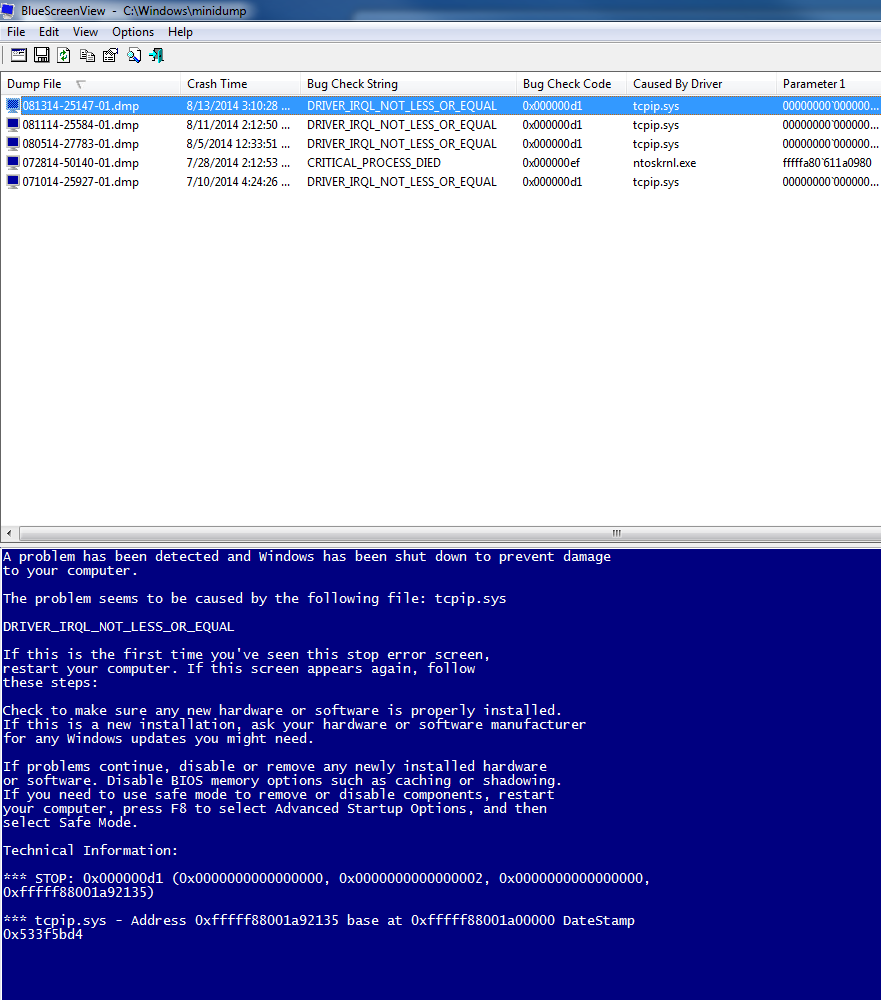
Reading a Memory .dmp File

Scenario:  A server performed a hard shutdown and restarted. You want to figure out the faulting process that cause this crash.

Steps:

1.  Make sure you have downloaded and installed BlueScreenView and WDK 8 (Windows Driver Kit).

2.  Open BlueScreenView.  If you have copied the dmp files to your computer, make sure you put them in C:windowsminidump folder.

Click on the dmp file and it will tell you what driver caused the blue screen.  You can also change the lower pane mode in the Options menu to see the actual Blue Screen on the server or the drivers in the crash stack. This will give you somewhat of an idea of what caused the crash.


3.  To find more information in the crash dump file, use WDK. Open a Elevated Command Prompt and navigate to the following directory: C:Program Files (x86)Windows Kits8.0Debuggersx64

4.  Copy the Dump file (.dmp) locally. On Server 2012, this is in the %SystemRoot%MiniDump folder.

5. Type the following:

kd –z C:windowsMiniDumpWindowsmemory.dmp

.logopen c:debuglog.txt

.sympath srv*c:symbols*http://msdl.microsoft.com/download/symbols

.reload;!analyze -v;r;kv;lmnt;.logclose;q

6. Review the results by opening c:debuglog.txt.  Search for the Process_Name and other relevant information and it will tell you the faulting processes and information.

This message could not be sent. Try again later or contact your network administrator. Error [0x80004005-000000000-00000000]

Issue: This message could not be sent. Try again later or contact your network administrator. Error [0x80004005-000000000-00000000]
Scenario: Organization has throttling policy with recipient rate limit of 10,000 per day set for the organization. For this org, service mailboxes aren’t throttled. User has 2 mailboxes (primary and service mailbox) opened in Outlook. User has send-as permissions to the service mailbox but as a group member.
User tries to send from outlook as service mailbox to multiple recipients but received error message. see error message below
Undeliverable: your message did not reach some or all of the intended recipients. This message could not be sent. Try sending message again later or contact your network administrator. Error is
[0x80004005-000000000-00000000].
Resolution: Advised user to send message using Outlook web Access. User needs to login to OWA and open the service mailbox. Messages can now be sent without throttling.

Alternatively, for a user that insist on using Outlook, user must be given explicit send-as permission to the service mailbox so as to be able to bypass throttling policy